
A laptop not turning on feels like the worst-case scenario — but in our experience diagnosing these faults every week at The Repair Hospital, it’s often something you can rule out in five minutes at home. Before you assume it’s a dead motherboard, work through the seven checks below in order. They won’t fix every case, but they’ll tell you whether you’re dealing with a $0 fix or something that genuinely needs a technician.
One caveat upfront: if your laptop has been exposed to liquid, shows a swollen battery, or smells burnt, skip straight to the “when to stop troubleshooting“ section below. Those situations get worse, not better, with DIY attempts.



Why is my Laptop not Turning On suddenly?
“Won’t turn on” isn’t one problem — it’s a symptom with several possible causes, and the fix depends entirely on which one you’re dealing with:
- Power delivery issues — a faulty outlet, cable, or adapter means the laptop never gets charge in the first place
- A drained or faulty battery — common in laptops over 2–3 years old, or ones left unused for weeks
- A stuck power state — residual electrical charge in the system that a normal shutdown doesn’t clear
- Display problems disguised as power problems — the laptop is actually on, but nothing shows on screen
- Hardware failure — RAM, the motherboard, or the charging circuit itself has failed
In Singapore specifically, we see a few local patterns more often than manufacturer guides account for: laptops that travelled overseas and came back with a mismatched or third-party adapter, laptops used daily on beds or sofas where the vents get blocked, and older units that develop battery swelling faster in our humidity than they would in a drier climate. Keep these in mind as you go through the checks.
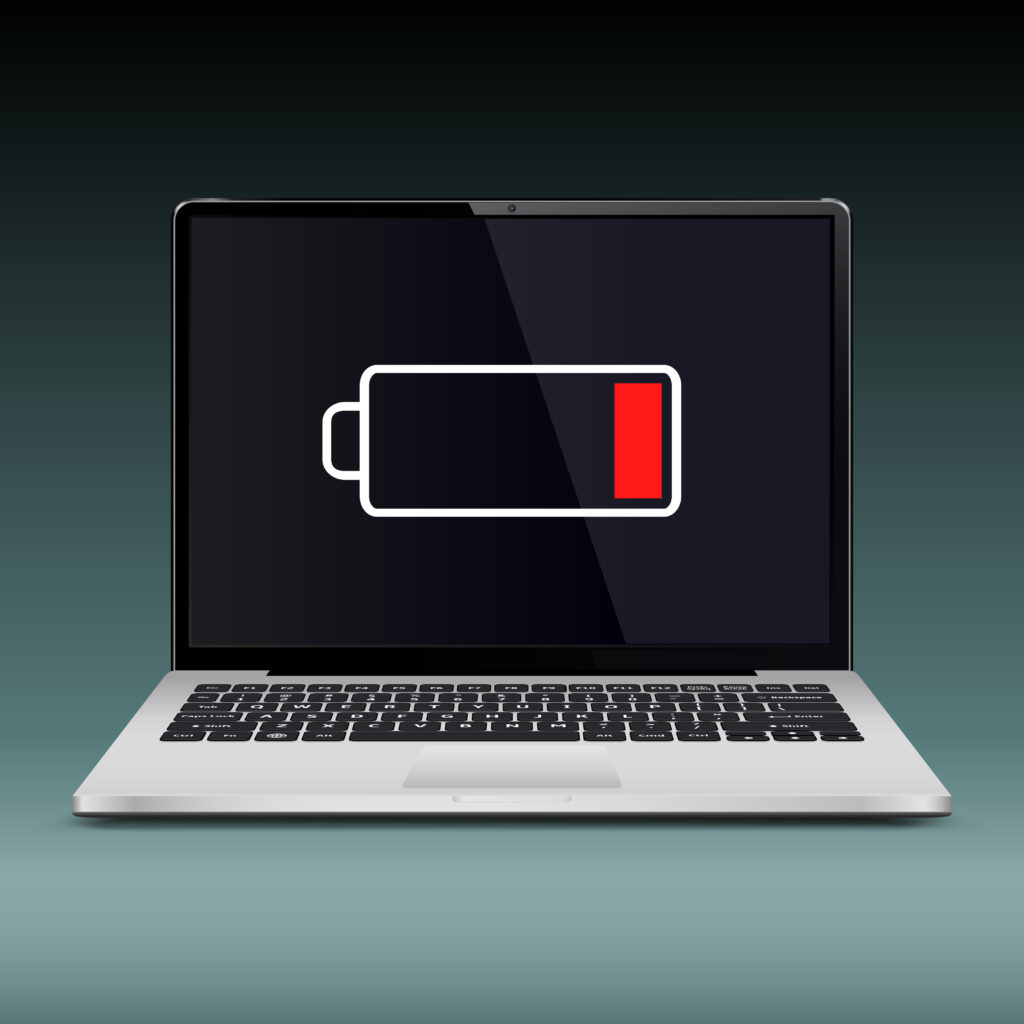
1. Check the Power Connection First
Before touching the laptop itself, confirm power is actually reaching it:
- Plug the adapter into a different wall outlet. If you’re in an HDB flat or older office, a tripped socket or faulty point is more common than people expect.
- Look for a small LED light on the adapter brick itself. No light usually means the adapter — not the laptop — is the problem.
- Check the cable along its full length for fraying, kinks, or a chewed section (a common one if you have pets or young kids at home).
- If you have a desktop or another device you can plug into the same outlet, test it to rule out the socket entirely.
If the adapter shows no light in any outlet, you likely need a replacement adapter, not a laptop repair — a much cheaper fix.
2. Try a Different Charger or Adapter
If the outlet checks out, the adapter itself might be the fault — this is one of the most common “no power” causes we see, and one of the cheapest to resolve.
Borrow a charger from a colleague or friend with the same laptop brand if you can, or check if your workplace has a spare. If your laptop suddenly stops charging shortly after you started using a cheap, third-party replacement adapter bought online, that’s worth suspecting first — mismatched voltage or a poorly made charger can damage the laptop’s charging circuit over time, not just fail to charge it.
If a known-working charger brings the laptop back to life, the fix is a genuine replacement adapter — ideally one rated for your exact laptop model.
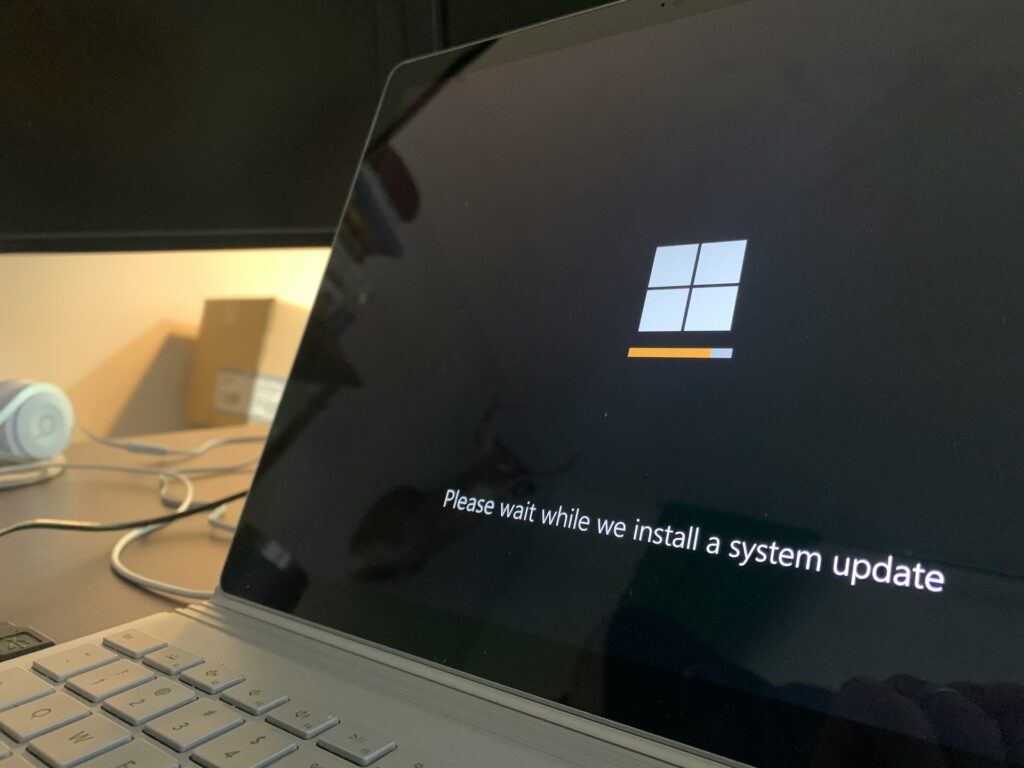
3. Do a Proper Hard Reset
Laptops can get stuck in a power state that a normal restart won’t clear — usually from a bad shutdown, a firmware hiccup, or a drained battery mid-use. A hard reset clears this:
- Unplug the charger completely.
- If your laptop has a removable battery, take it out. (Most modern ultrabooks and MacBooks have batteries sealed inside — skip this step if yours does.)
- Hold down the power button for 20–30 seconds. This drains any residual charge sitting in the system.
- Reconnect the battery (if removed) and the charger.
- Press the power button normally and see if it starts.
This single step resolves a surprising number of “dead” laptops, because the fault isn’t actually the hardware — it’s a stuck electrical state.
4. Look for Any Signs of Life
If the hard reset doesn’t work, the next question is: does anything happen when you press power? Check in a dark room, since a dim screen is easy to miss in daylight:
- Do the fans spin or make any sound?
- Do any lights turn on — power indicator, caps lock, charging light?
- Does the keyboard backlight come on, if your laptop has one?
No signs of life at all usually points back to power delivery or the battery (revisit checks 1–3), or in older laptops, a failed charging circuit on the motherboard.
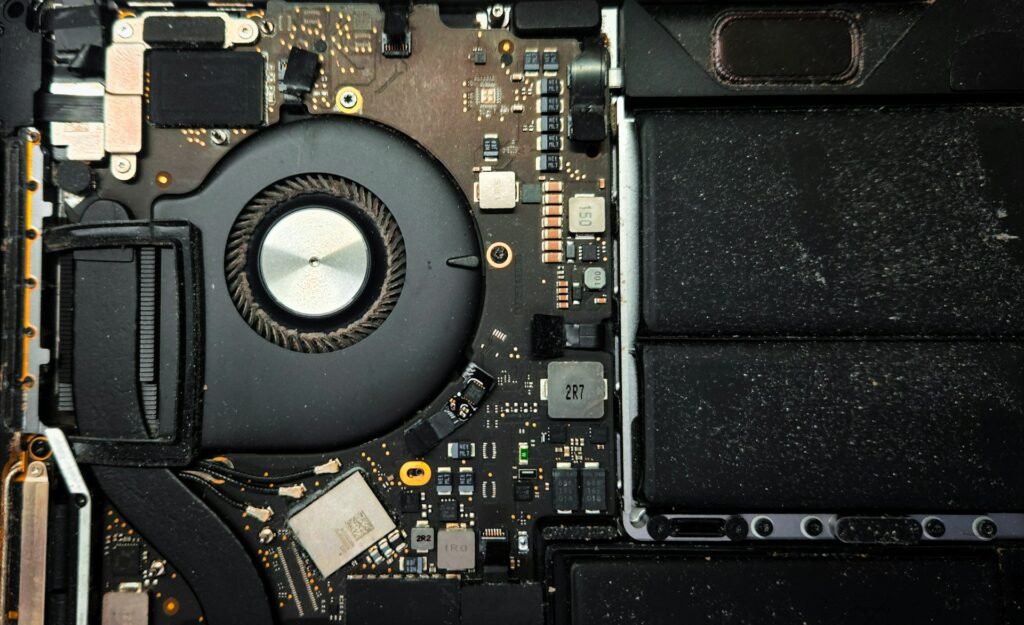
Lights or fans, but the screen stays black
This is a different problem — your laptop is likely turning on, but the display isn’t showing anything. It’s worth ruling this out before assuming the worst:
- Connect the laptop to an external monitor or TV via HDMI. If you get a picture, the fault is with the laptop’s screen or display cable — a far cheaper repair than a dead motherboard.
- Press Windows key + P and cycle through the display options (this sometimes brings a picture back if the laptop is set to output to a display that isn’t connected).
5. Check for a Swollen Battery
Flip the laptop over and look for the base bulging, feeling puffy, or no longer sitting flat on a table. Open the lid and check if the keyboard deck has lifted slightly in the middle — a common giveaway on laptops with the battery underneath the keyboard.
If you see or feel any swelling, stop here. Don’t press the power button, don’t charge it, and don’t try to remove the battery yourself. A swollen lithium-ion battery is a genuine fire risk, and further pressure or a punctured cell can make it worse. Power it down if it’s on, unplug it, and get it to a repair shop the same day.
Singapore’s humidity tends to accelerate battery swelling in laptops that are a few years old, particularly ones that are frequently left plugged in at 100% — so this is worth checking even if the laptop was working fine last week.
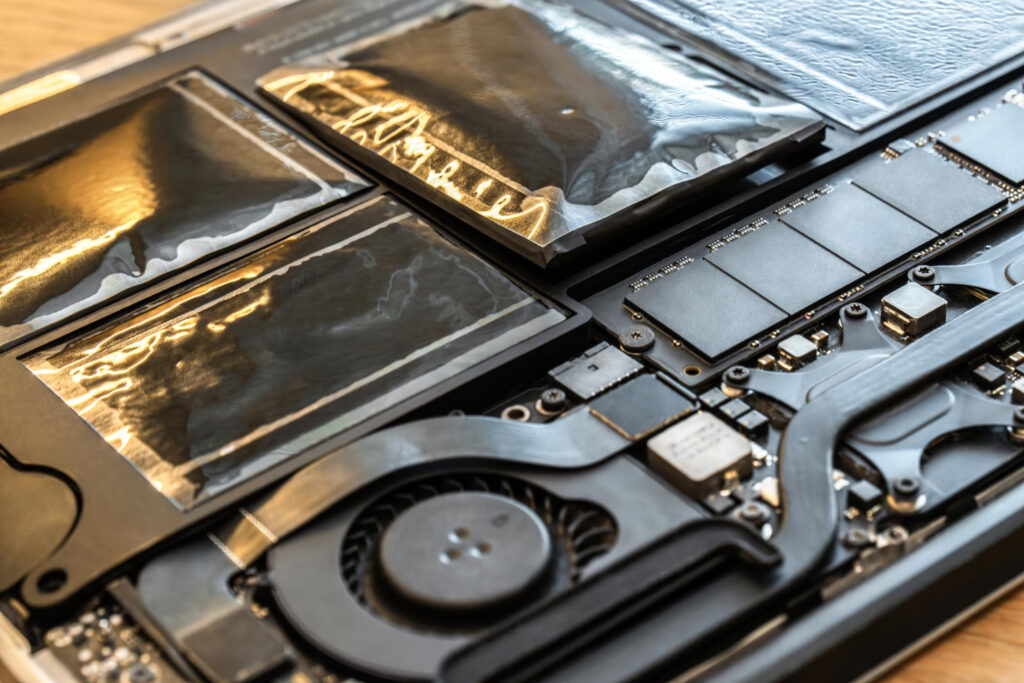
6. Rule Out Overheating
Some laptops shut down or refuse to power back on as a safety measure when they’ve overheated. This is more common than people expect in Singapore, where laptops used on beds, sofas, or with the vents pressed against a bag lining don’t get enough airflow.
- Let the laptop sit unplugged for 20–30 minutes to cool down fully before trying again.
- Check that the vents (usually on the base or sides) aren’t blocked by dust, a soft surface, or debris.
- If you can hear the fan straining loudly right before a previous shutdown, or the base was unusually hot to the touch, overheating is a likely culprit — and worth a proper internal clean if it keeps happening.
7. Watch and Listen for Beep Codes or Blinking Lights
Some laptops — particularly business and gaming models — signal a specific hardware fault through a pattern of beeps on startup, or a sequence of blinking LED lights (often near the power button or caps lock key). These patterns are brand- and model-specific, so we won’t list exact codes here, since a wrong guess can send you down the wrong troubleshooting path.
What matters is this: if you hear or see a repeating pattern, note it down or record a short video before bringing the laptop in. It tells a technician exactly which component to check first — RAM, the motherboard, or the display — and can cut real time off the diagnosis.
When to Stop Troubleshooting and Call a Repair Shop
Go through the checks above and it’s time to bring the laptop in if:
- There’s still no sign of power after trying a different outlet, a different charger, and a hard reset
- You spotted a swollen battery
- The laptop has had any liquid contact, even a small spill — don’t keep pressing the power button to “check” if it works, as this is one of the most common ways a repairable liquid-damage case turns into an unrepairable one
- You noticed a burning smell, visible scorch marks, or the laptop was unusually hot before it died
- You heard beep codes or saw a blinking light pattern
- The laptop is still under manufacturer warranty — check this before any third-party repair, since some manufacturers void the warranty once a non-authorised shop has opened the unit
At this point, further DIY attempts mostly risk turning a $150 repair into a $450 one, or a recoverable hard drive into an unrecoverable one.
What Happens at a Free Diagnostic
If none of the checks above bring your laptop back, The Repair Hospital offers a free diagnostic on every “won’t turn on” case — you’ll get a proper breakdown of what’s actually wrong and a firm quote before any work starts, so you’re not paying to find out. Most no-power faults come down to the charging circuit, the battery, or the motherboard, and our laptop repair cost guide has real 2026 price ranges for each if you want a sense of cost before you come in.
We service all major laptop brands — Acer, ASUS, Dell, Fujitsu, HP, Lenovo, MSI, Razer, Samsung, Toshiba, Xiaomi, and MacBooks — and most common repairs are same-day if parts are in stock. Walk in at our Aljunied service centre, or use our Clementi drop-off point by appointment.
Book a free diagnostic:
- Call: (+65) 6292 1331
- WhatsApp/SMS: (+65) 8282 3368
- Book an appointment online
Opening hours: Monday to Saturday, 11am–7pm. Closed Sundays and public holidays.
FAQs
Why did my laptop suddenly stop turning on with no warning? Most sudden “no power” cases trace back to a failed adapter, a battery that finally gave out after gradual wear, or the laptop getting stuck in a bad power state after an improper shutdown. True motherboard failure happens, but it’s less common than people assume — which is why it’s worth working through the checks above before assuming the worst.
Is it safe to keep pressing the power button if my laptop won’t turn on? Repeated attempts are generally fine if there’s no sign of liquid damage, swelling, or burning smell. But once you’ve spotted any of those, stop — continuing to force power on can turn a fixable fault into a more expensive one, especially with liquid damage.
How can I tell if it’s the battery or the charger that’s faulty? Try a charger you know works with the same laptop model. If the laptop powers on with a different charger, your original adapter is the problem. If it still won’t turn on with a known-working charger, the fault is more likely the battery, the charging port, or something internal.
How much does it cost to fix a laptop that won’t turn on? It depends on the actual cause. A charging circuit or battery fix is often on the lower end, while a motherboard repair runs higher — our laptop repair cost guide breaks down real 2026 price ranges for each. A free diagnostic gives you an exact number for your specific laptop before you commit to anything.
Can a small liquid spill really stop a laptop from turning on? Yes — even a small amount of liquid reaching the motherboard can cause a short circuit that prevents the laptop from powering on at all. The outcome depends heavily on how quickly the laptop was powered off and brought in, so speed matters more than the size of the spill.